---
sidebar_position: 2.3
slug: /llm
sidebar_label: LLMs
sidebarCollapsed: true
sidebar_icon: sparkles
id: llm
---
# LLMs Components
We provide several components for LLMs (Large Language Models) that allow you to easily access and analyze financial data, real-time market data, and even enable AI to place orders.
Yes, you can use our LLM components through the Longbridge Developers. Start today!
## LLMs Text
The OpenAPI documentation follows the [LLMs Text](https://llmstxt.org/) standard, providing [llms.txt](https://open.longbridge.com/llms.txt) and Markdown files for each document. Based on this LLMs Text, you can provide AI with a complete dictionary of Longbridge Developers documentation as a reference for AI-assisted development, enabling AI to generate more accurate code.
- [https://open.longbridge.com/llms.txt](https://open.longbridge.com/llms.txt) - Approximately 2104 tokens.
Each of our documents is also available in Markdown format. When accessing them, simply add the `.md` suffix to the URL.
For example:
-
-
## Longbridge.com Markdown Access (AI-friendly)
In addition to OpenAPI docs, pages on [https://longbridge.com](https://longbridge.com) are also AI-friendly for markdown retrieval.
You can get markdown content in either way:
1. Add `.md` suffix to page URL
2. Send request header: `Accept: text/markdown`
Examples:
- [https://longbridge.com/en/topics.md](https://longbridge.com/en/topics.md)
- `curl -H "Accept: text/markdown" https://longbridge.com/quote/TSLA.US`
This is useful for LLM crawlers, RAG indexing, and tool-based content ingestion while keeping page structure clean.
### Demo
### Using in Cursor
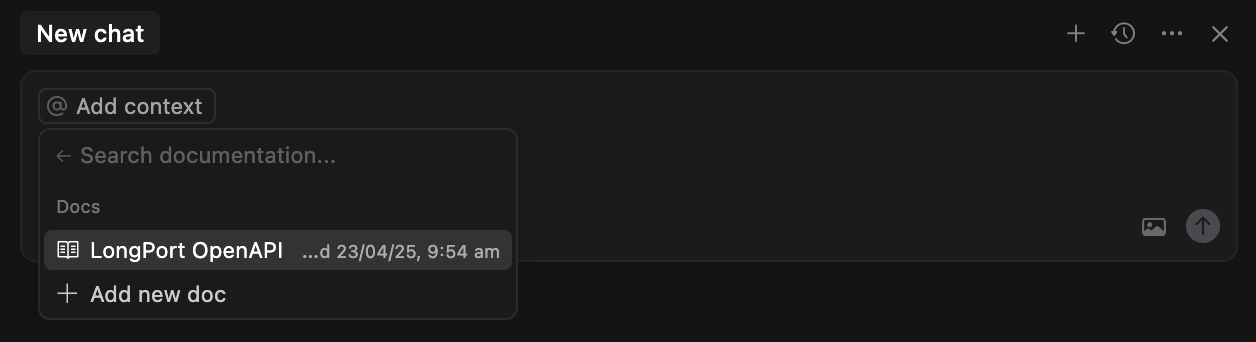
Open Cursor, open the command palette (`Command + Shift + P`), search for and select **Add New Custom Docs** and enter the Longbridge Developers LLMs Text address in the dialog box:
```
https://open.longbridge.com/llms.txt
```
Once added successfully, the Cursor Settings will look like this:
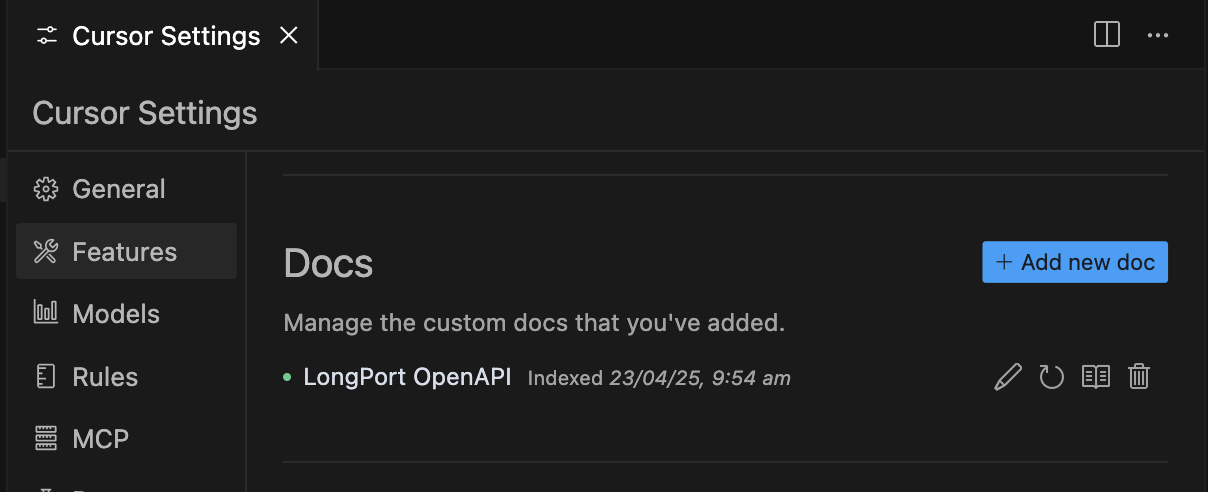 Next, in an AI conversation, you can select the Docs you just added under the `docs` menu of **@Add Context**. This allows the AI to use these documents as context in subsequent conversations.