Android開発
This guide covers how to run and debug Ionic apps on Android emulators and devices using Capacitor or Cordova. Android apps can be developed on Windows, macOS, and Linux.
Android Studio
Android Studio is the IDE for creating native Android apps. It includes the
Android Studio is also used to
We don't recommend using Android Studio for developing Ionic apps. Instead, it should only really be used to build and run your apps for the native Android platform and to manage the Android SDK and virtual devices.
Android Studioのインストール
Android websiteからAndroid Studioをダウンロードします。より詳しいインストール手順はUser Guideをご覧ください。
Android SDKのインストール
Android Studioをインストールしたら起動します。IDEは、Android SDKのインストールが必要であることを検出するはずです。SDK Components Setupの画面で、SDKのインストールを完了して、Android SDKのパスのをメモしておいてください。

By default, the latest stable SDK Platform is installed, which includes a collection of packages required to target that version of Android.
To install system images and other minor SDK platform packages, you may need to ensure
Show Package Details is checked at the bottom of the SDK Manager.
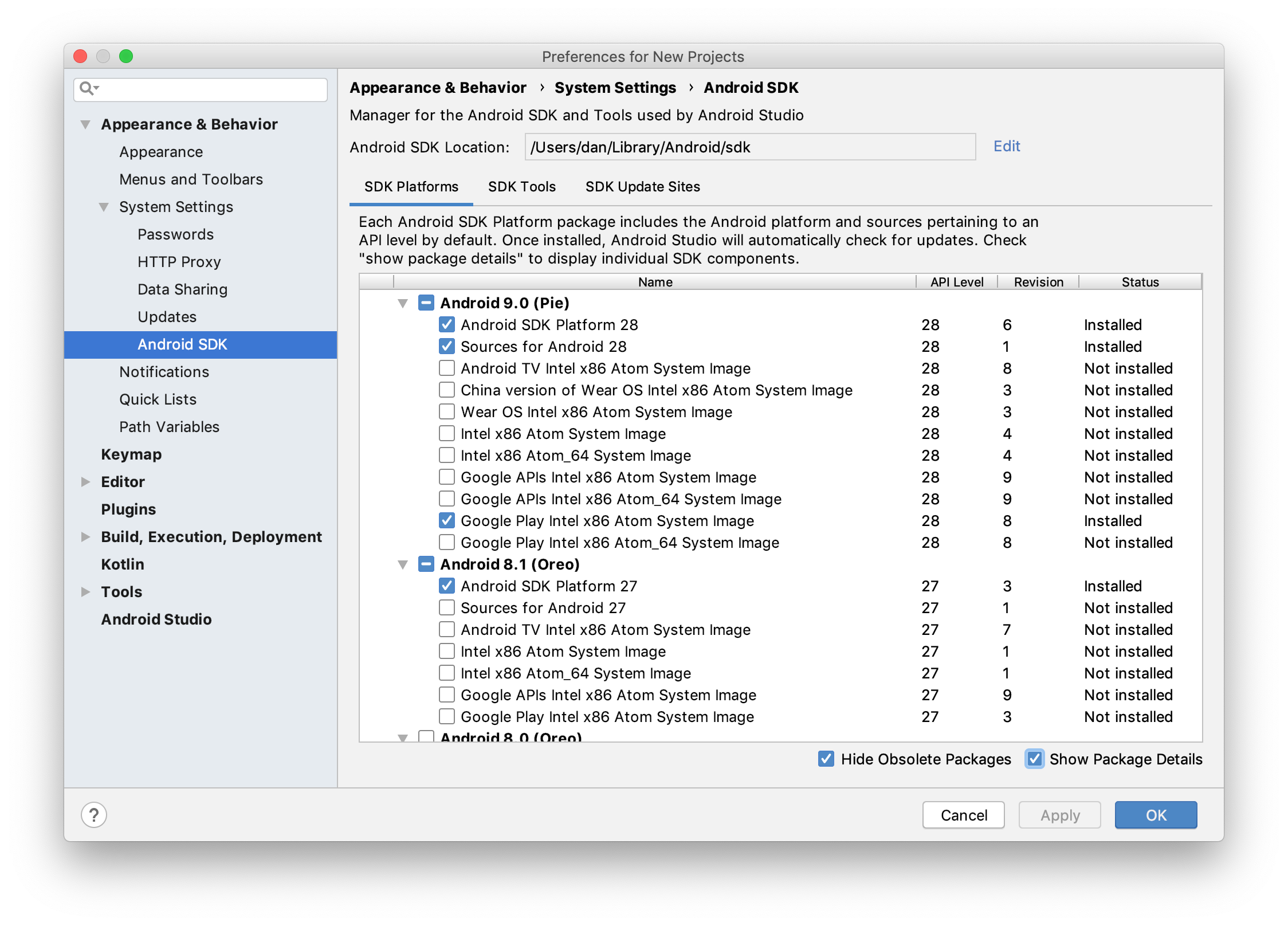
For future reference, the Android SDK can be managed with Android Studio in the Configure » SDK Manager menu of the Android Studio welcome screen or Tools » SDK Manager inside Android projects.
コマンドラインツールの設定
Android SDKには便利なコマンドラインツールが付属しています。これは利用する前に、いくつかの環境変数を設定する必要があります。以下のドキュメントは、macOSとLinuxのものです。WIndowsの場合は、ターミナルセッションでの環境変数の設定と保存に関するドキュメントを確認ください。
~/.bashrcもしくは~/.bash_profile、または同様のシェル起動スクリプトを、次のように変更します。s:
ANDROID_SDK_ROOT環境変数を設定します。このパスは、前のセクションでメモしたAndroid SDKのパスです。$ export ANDROID_SDK_ROOT=$HOME/Library/Android/sdkPATHにAndroid SDK コマンドラインのディレクトリを追加します。それぞれのディレクトリは、コマンドラインツールのカテゴリに対応しています。.# avdmanager, sdkmanager export PATH=$PATH:$ANDROID_SDK_ROOT/tools/bin
# adb, logcat export PATH=$PATH:$ANDROID_SDK_ROOT/platform-tools
# emulator export PATH=$PATH:$ANDROID_SDK_ROOT/emulator apksignerとzipalignのために,$ANDROID_SDK_ROOT/build-tools/は必ずPATHに追加する必要があります。
Android仮想デバイスの作成
Android仮想デバイス(AVD)は、AndroidエミュレータがAndroid OSを実行するために利用する設計図です。以下のドキュメントはAndroidエミュレータをセットアップするための簡単な方法です。詳細な手順と情報は、Android のドキュメントを参照ください。
AVDs are managed with the AVD Manager. In the Android Studio welcome screen, click Configure » AVD Manager. The AVD Manager can also be opened inside Android projects in the Tools » AVD Manager menu.

Click Create Virtual Device and select a suitable device definition. If unsure, choose Pixel 2. Then, select a suitable system image. If unsure, choose Pie (API 28) with Google Play services. See Android version history for information on Android versions.
AVDが作成されたら、AndroidエミュレータでAVDを起動します。エミュレータを実行し続けることは、Android用のIonicアプリケーションを開発しながら検出を確実にするための最良の方法です。

Androidデバイスを設定する
Androidハードウェアの実物は、Ionicアプリ開発でも使用できます。しかし、最初に、デバイスを開発用にセットアップする必要があります。以下のドキュメントは開発用にAndroidデバイスを設定する簡単な方法です。詳細な手順と情報については、the Android documentationを参照してください。
- デバイスのUSBデバッグを有効にします。Settingsを開き、Developer optionsに移動し、USB debuggingを有効にします。Developer optionsのメニューを最初に有効にする必要があるかもしれません。手順についてはthe Android documentationをご確認ください。
- デバイスにコンピュータへの接続許可があることを確認してください。macOSの場合、追加の設定は不要です。Windowsの場合はOEM USB driversをインストールしてください。
USBケーブルでデバイスをコンピュータに接続し、次のコマンドを使用して接続が機能することを確認します。
$ adb devicesThe device should be listed. See the full
adb documentation for troubleshooting and detailed information.
Cordova Setup
Additional setup is required for Cordova to support programmatic builds. This section is not necessary for Capacitor.
Java
Native Android apps are compiled with the Java programming language. Download JDK8 from the download page.
Unfortunately, Cordova is not compatible with the latest version of Java.
Gradle
Gradle is the build tool used in Android apps and must be installed separately. See the install page for details.
Project Setup
Before apps can be deployed to Android simulators and devices, the native project must be configured.
Generate the native project, if it does not already exist.
For Capacitor, run the following:
$ ionic capacitor add androidFor Cordova, run the following:
$ ionic cordova prepare androidSet the
Package ID .For Capacitor, open the
capacitor.config.jsonfile and modify theappIdproperty.For Cordova, open the
config.xmlfile and modify theidattribute of the root element,<widget>. See the Cordova documentation for more information.
Running with Capacitor
Capacitor uses Android Studio to build and run apps to simulators and devices.
Develop the Ionic app and sync it to the native project.
With each meaningful change, Ionic apps must be built into web assets before the change can appear on Android simulators and devices. The web assets then must be copied into the native project. Luckily, this process is made easy with a single Ionic CLI command.
$ ionic capacitor copy androidIn Android Studio, click the Run button and then select the target simulator or device.

Live reload
To start a live-reload server run the following command.
$ ionic capacitor run android -l --host=YOUR_IP_ADDRESSWhen running on a device make sure the device and your development machine are connected to the same network.
Running with Cordova
The Ionic CLI can build, copy, and deploy Ionic apps to Android simulators and devices with a single command. It can also spin up a development server, like the one used in
ionic serve, to provide
Run the following to start a long-running CLI process that boots up a live-reload server:
$ ionic cordova run android -lNow, when changes are made to the app's source files, web assets are rebuilt and the changes are reflected on the simulator or device without having to deploy again.
Debugging Android Apps
Once an app is running on an Android device or emulator, it can be debugged with Chrome DevTools.
Using Chrome DevTools
Chrome has web developer tool support for Android simulators and devices. Go to
chrome://inspect in Chrome while the simulator is running or a device is connected to the computer and
Inspect the app that needs to be debugged.
Make sure your application is running on the device or simulator, or it will not show up in the list.

Viewing Native Logs
If running with Android Studio, native logs can be found in Logcat.
If the Logcat window is hidden, you can enable it in View » Tool Windows » Logcat.

You can also access Logcat with ADB.
$ adb logcat