Behavior
The Behavior helper script allows you to create simple interactions without writing any custom script. With Behavior, interactions are completely configured in the Inspector panel. It allows you to configure the trigger type which defines when something should happen. Next, it allows you to configure what should happen as a response to a trigger. The selectable responses include a number of commonly used interactions like playing an animation, playing a sound, enabling an object and more.
Overview

The Behavior helper script's interface is broken out into two sections:
- Trigger: Defines when something should happen
- Response: Defines what should happen as a response to the trigger
In the below example, I've configured the Trigger to Mouth Opened. Next, I've configured the Response to Play Sound. The resulting interaction is - when the user opens their mouth -> play a sound.

Adding Behavior
Add Object
To add the Behavior helper script, in the Scene Hierarchy panel select + -> Scripts -> Behavior. This will create a new object with the Behavior helper script added to it.

Configure Behavior
Once the Behavior helper script is added, it can be configured in the Inspector panel. To do this, first select the object in the Scene Hierarchy panel. Then, in the Inspector panel you'll see a number of options. To configure the Behavior helper script, first select the Trigger which defines when something should happen. Then, select the Response Type, which defines what should happen on trigger. Finally, configure additional settings based on the selected Trigger and Response Type. These additional settings are detailed below in the Trigger Types and Response Types sections.
In the example below, we first set the Trigger to the Face Event type: Brows Raised. Then, we set the Response Type to Play Sound. Finally, we configure the sound we want to play in the response type's settings. The resulting interaction is - when the user's eyebrows are raised -> play a sound.
Trigger Types
The Behavior helper script offers a number of Trigger Types via the Trigger dropdown. When the Trigger happens, the Behavior helper script will fire the Response.

The sections below detail the available Trigger Types.
Touch Event
The Touch Event trigger responds to the user touching the screen or a portion of the screen.

- Event Type: The type of touch event to trigger on. Includes
Tap,Touch Start,Touch MoveandTouch End - Touch Target: When
Touch Targetis left empty, the trigger will happen when the user touches the entire screen. If you setTouch Targetto a MeshVisual, Screen Image or Image, the touch will happen only when you touch that specific object.
Face Event
The Face Event trigger responds to the user moving their face in some way.

- Event Type: The type of face event to trigger on. Includes
Mouth Opened,Brows Raised,Face Found,Kiss Started,Smile Startedand more - Face Index: The face to look for the trigger on. When two faces are in the scene, the first face found is
Face Index0 and the second face found isFace Index1 .
On Awake
The On Awake Event trigger happens as soon as the Lens starts. Occurs before On Start.
On Start
The On Start Event trigger happens as soon as the Lens starts.
On Enabled
Triggered when the current object, or a specified object is enabled (i.e. similar to their box being checked in the Scene Hierarchy panel).
On Disabled
Triggered when the current object, or a specified object is disabled (i.e. similar to their box being unchecked in the Scene Hierarchy panel).
Update
The Update trigger happens every single frame.
You can utilize the Update trigger and configure the Trigger Options to After Interval. This will create a trigger that happens every X number of seconds.
Late Update
The Late Update trigger happens every single frame. The Late Update however always happens immediately after the Update trigger.
Front Camera
The Front Camera trigger happens every time the user switches to the Front camera either through the swap camera button or by double tapping the screen.
Back Camera
The Back Camera trigger happens every time the user switches to the Back camera either through the swap camera button or by double tapping the screen.
Animation End
The Animation End trigger happens when a specified animation finishes.

- Anim Type: The type of the animation that you want to respond to when the animation finishes. This can be an animated texture, an animated image or an animated 3D mesh.
- Target- Depending on the
Anim Typethat is selected, here you'll configure the animation resource or object you want to respond to when the animation finishes.
Tween End
The Tween End trigger happens when a Tween finishes utilizing the Tween System.

- Target Object: The object the Tween is on.
- Tween Name: The name of the Tween that is being played.
Looking At
The Looking At trigger happens when one object is looking at another object.

- Looking Object: The object that's doing the looking. A common use case here is to make the
Looking Objectyour primary camera. - Look Target: The object that when looked at triggers the response.
- Flip Forward Vec: Flips the z direction where the angle is compared. This should be enabled when your
Looking Objectis a camera. - Compare Type: How you'll compare the angle between the two objects. Options are
Less Than,Equal ToandGreater Than. - Angle: The tunable angle used to trigger the response.
- Allow Repeat: When enabled, the response will call every frame when the angle check succeeds.
Distance Check
The Distance Check trigger happens when one object is within a configurable distance of another object.

- Object A: The first object to distance check against.
- Object B: The second object to distance check against.
- Compare Type: How you'll compare the distance between the two objects. Options are
Less Than,Equal ToandGreater Than. - Distance: The tunable distance used to trigger the response.
- Allow Repeat: When enabled, the response will call every frame when the distance check succeeds.
- Flatten Z Distance: Use this option when using distance check on a Screen Transform.
Marker Tracking Event
The Marker Tracking Event trigger happens when the specified marker is either found or lost.

- Event Type: When the trigger will occur. Options are
Marker FoundandMarker Lost.
Object Tracking Event
The Object Tracking Event trigger happens when the specified object is either found or lost.

- Event Type: When the trigger will occur. Options are
Marker FoundandMarker Lost, Descriptor Start, or Descriptor End.
Location Event
The Location Event trigger happens when the specified location or Landmarker is either found or lost.

- Event Type: When the trigger will occur. Options are
Location FoundandLocation Lost.
Machine Learning Event
The Machine Learning Event trigger happens when a machine learning component has loaded or has ran. Learn more about these events in the ML Component guide.

- Event Type: When the trigger will occur. Options are
Loading FinishedandRunning Finished. - ML Component: A reference to the Machine Learning component.
Recording Event
The Recording Event trigger happens when the user starts or stops recording a Snap or captures an image while using the lens.

- Event Type: When the trigger will occur. Options are
Recording Start,Recording StopandImage Capture.
On Custom Trigger
The On Custom Trigger happens when a custom trigger is fired via another Behavior helper script. See the Send Custom Trigger response type below.

- Trigger Name: The name of the custom trigger to respond to.
- Use List: To add multiple custom triggers.
Physics Collider Event
The Physics Collider Event happens when a physics collision or overlap occurs on a specified collider. You also have the ability to filter which event you want to respond to.

- Collider: The name of the custom trigger to respond to.
- Collision Type: The type of object interaction you are interested in:
Collision, orOverlap. - Event Type: When in the collision you want the trigger to occur:
On Enter,On Stay,On Exit. - Collider Filtering: Only trigger events when the collision occur with: specified objects, or objects with specified names (
Equals,Starts With,RegEx). If checkingOverlaps, you will have additional option to check if object is:static,dynamic,intangible.
You can apply physics to colliders using the Physics Apply Force response below.
None Trigger
The None trigger is when you don't want the behavior to be run. You might use this when keeping old behaviors in your project as reference but don't want them to ever run.
Trigger Options
A number of additional options are available when configuring your Trigger that apply to all Trigger Types.
Always

When Always is selected, the Trigger will always happen over multiple same triggers. Additionally, you're able to configure a Delay Time which delays the Response a configurable number of seconds after the trigger happens.
Once

When Once is selected, the Trigger will only happen once during the lifetime of the Lens. Same triggers after the first will be ignored. Additionally, you're able to configure a Delay Time which delays the Response a configurable number of seconds after the trigger happens.
After Interval

When After Interval is selected, the Trigger will wait the Interval Time before allowing the trigger to happen again. Within the Interval Time window, same triggers will be ignored. When the Interval Time window is complete, the Trigger can happen again. Additionally, you're able to configure a Delay Time which delays the Response a configurable number of seconds after the trigger happens.
Response Types
The Behavior helper script offers a number of Response Types via the Response Type dropdown. When the Trigger happens, the Behavior helper script will fire the Response.

The sections below detail the available Response Types.
Animate Image
The Animate Image response type plays a 2D animation.

- Animated Texture: The animated texture you'd like to play.
- Visual Object: Alternatively, you can select a visual object to play the 2D animation on. This can be a Mesh Visual, Screen Image or Image. If both an
Animated TextureandVisual Objectare set, theAnimated Texturewill be applied to the Visual Object and played - Action: The action to take on the animation. Available options are:
Play,Play or Resume,PauseandStop - Loop: When playing an animation, should the playback continuously loop
Animate Mesh (Animation Player)
The Animate Mesh (Animation Player) response type plays a mesh animation.

- Animation Player: The animation player to play the animation on.
- Clip Name: The clip name of the animation to play.
- Action: The action to take on the animation. Available options are:
Play,Play or Resume,PauseandStop. - Weight: The strength of the animation clip contribution.
- Playback Mood: Specifies how the animation should play:
Single,Loop, orPingPong.
Play Sound
The Play Sound response type plays a sound.

- Audio Track: The audio resource (e.g. mp3) that you want to play. Note, the response automatically creates an Audio Component for you if one isn't specified.
- Audio Component: Alternatively, you can select an
Audio Componentto play the audio on. If bothAudio TrackandAudio Componentare set, theAudio Trackwill be applied to theAudio Componentand played. - Loop: When playing a sound, should the playback continuously loop.
- Volume: The volume at which the sound is played.
Set Enabled
The Set Enabled response type enables or disables a Scene Object.

- Target: The target Scene Object to enable or disable.
- Action: Defines if the object should be enabled, disabled or toggled (If disabled, enable. If enabled, disable).
Set Color
The Set Color response type sets the color of an object or material.
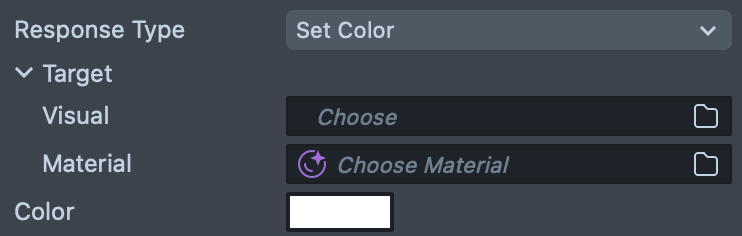
- Visual: A mesh visual or image object to set the color on.
- Material: A material to change the base color on. This is only used if
Mesh Visualis not set. - Color: The color that will be set.
Set Texture
The Set Texture response type sets the texture of an object.

- Target: A mesh visual or image object to set the texture of
- New Texture: The texture to set on the target object
Set Text
The Set Text response type sets the text of a Text or Screen Text object.

- Component Type: Choose between Text3D or Text Component.
- Text Component: The Text Component to apply the text to.
- Text: The string you'd like to set the Text Component's text to.
Run Tween
The Run Tween response type runs a Tween utilizing the Tween System.

- Target Object: The scene object the Tween is on.
- Tween Name: The name of the Tween to be played.
- Action: The action to take on the Tween. Available options are:
Start,Stop,PauseandResume.
Set Position
The Set Position response type sets the position of an object's Transform.

- Object to Move: The object to set the position of.
- Position: The
vec3position to set. - Local Space: When enabled, local space will be used. When disabled, world space will be used.
Set Rotation
The Set Rotation response type sets the rotation of an object's Transform.

- Object to Rotate: The object to set the rotation of.
- Euler Rotation: The
vec3euler rotation to set. - Local Space: When enabled, local space will be used. When disabled, world space will be used.
Set Scale
The Set Scale response type sets the scale of an object's Transform.

- Object to Scale: The object to set the scale of.
- Scale: The
vec3scale to set. - Local Space: When enabled, local space will be used. When disabled, world space will be used.
Set Screen Position
The Set Screen Position response type sets the position of an object with a Screen Transform. For example, a Screen Image or Screen Text object.

- Screen Transform: The Screen Transform to set position of.
- Position Type: The type of position to set. Available options are
Basic Position,Anchors RectandOffset Rect. - Basic Position: A basic local position. For most simple positioning, you should use basic position.
- Anchors Rect: The relative position within the parent on a -1 to 1 scale.
- Offset Rect: Fixed world unit offsets to each edge position.
Set Screen Rotation
The Set Screen Rotation response type sets the rotation of an object with a Screen Transform. For example, a Screen Image or Screen Text object.

- Screen Transform: The Screen Transform to set rotation of.
- Angle: The angle rotation to set from 0.0 to 360.0
Set Screen Size
The Set Screen Size response type sets the size of an object with a Screen Transform. For example, a Screen Image or Screen Text object.

- Screen Transform: The Screen Transform to set the size of.
- Size Type: The type of size to set. Available options are
Basic Scale,Anchors RectandOffset Rect. - Basic Scale: A basic local scale. For most simple scaling, you should use basic scale.
- Anchors Rect: The relative size within the parent on a -1 to 1 scale.
- Offset Rect: Fixed world unit offsets to each edge position.
Set Blendshapes
The Set Blendshapes response type sets a blend shape weight on a BlendShapes component for a 3D Animation.

- Mesh Visual: The mesh visual that has the blend shape component you want to affect.
- Name: The name of the blend shape to affect
- Weight: The weight to set this blend shape to.
Set Material Parameter
The Set Material Parameter response type allows you to modify a material's parameter--for example, allowing you to change the base color of the default PBR material.

- Target Type: Available options are
Material,MeshVisual,VFX AssetandVFX Component. - Material: The Material asset you want to affect.
- Parameter Name: The name of the parameter to affect.
- Value Type: The type of the value you want to pass in. It should match what the material expects. For example, if your material expects a color, you should choose
Color (RGBA). - Float Value: The value to set this property to.
Set Touch Blocking
The Set Touch Blocking response type allows you to set how your Lens deal with touches.

- Interaction Component: Apply the touch blocking only within the area of a Interaction Component so that touches are not passed to Snapchat.
- Global Touch Blocking: Apply the touch blocking around the whole screen so that touches are not passed to Snapchat.
- Touch Blocking Exceptions: Allow some types of touches to pass through to Snapchat. Usually you want to enable
DoubleTapexceptions so that users can flip the camera while using your Lens.
Show Hint
The Show Hint response type allows you to trigger the Lens Hint. This hint text is localized to the region that the user is in

- Hint: The hint text to show.
- Duration: How long the Hint should be shown before fading out.
Machine Learning
The Machine Learning response type allows you to set up how an ML Component should run.
- ML Component: The ML Component to affect.
- Action: What action should be performed on the ML Component. Options are:
Build,Run Immediate,Run Scheduled,Cancel,Stop. - Sync: Whether to run the ML Component in synchronous mode.
Instantiate Prefab
The Instantiate Prefab response type instantiates the Prefab into the scene, and optionally gives the new object a Parent.

- Prefab: The prefab to instantiate.
- Parent: If set, the instantiated object will use this as a parent.
Destroy Object
The Destroy Object allows you destroy an object in the scene.

- Object: The object to destroy.
Print Message
The Print Message response type prints a debug message to the Logger panel.

- Message: The message to print to the
Loggerpanel.
Call Object API
The Call Object API allows you to call the APIs on a script. You can call a function or set a property exposed in another script's API.

- Target Type: Choose between (SceneObject, Component, Script API, or Global API).
- Component: The object to call upon.
- Call Type: Whether to call a function or set a property in the referenced script.
- Function Name: The name of the function to call.
- Property Name: The name of the property to set.
- Argument: The parameter to pass in to the function being called.
- Value Type: The type of the argument passed in.
- Value: The value to be set to the property if the property option is set.
Send Custom Trigger
The Send Custom Trigger response type sends a custom trigger message as a trigger to other Behavior helper scripts. The On Custom Trigger type can trigger based on the Send Custom Trigger response type.

- Trigger Name: The name of the custom trigger to send.
- Next in List: Allows you to provide a list of custom triggers which Behavior will go through every time the response is triggered.
Physics Apply Force
The Physics Apply Force response type allows you to affect a physics body.

- Body: The physics body the force should be applied to.
- Force Type: The type of force to be applied:
PositionorRotation. - Mode: The way the force should be applied:
Force,Acceleration,Impulse,Velocity Change,Set Velocity. - Force Value: How much force should be applied.
- Space: What the force value is relative to:
WorldorLocal.
You can respond to physics collision events using the Physics Collider Event response above.
Script Interface
In addition to configuring BehaviorScripts through the Inspector panel, it's also possible to interact with them through script. This means you can use your scripts to trigger BehaviorScript responses, or react to BehaviorScript triggers with your scripts.
Local API
These functions are accessible on the api object of any ScriptComponent holding a BehaviorScript. They only affect the specific BehaviorScript being accessed.
api.trigger()- Manually triggers the BehaviorScript's responseapi.addTriggerResponse(callback)- Adds a callback function to call when this BehaviorScript is triggeredapi.removeTriggerResponse(callback)- Removes the callback function from this BehaviorScript's response
//@input Component.ScriptComponent behaviorScript
function onTrigger() {
  print('behavior script triggered');
  // Remove our onTrigger() function from the BehaviorScript responses
  script.behaviorScript.api.removeTriggerResponse(onTrigger);
}
// Add our onTrigger() function as a response to the BehaviorScript being triggered
script.behaviorScript.api.addTriggerResponse(onTrigger);
Global API
These functions are accessible on the global.behaviorSystem object from anywhere in script. They provide a way to globally send Custom Triggers or react to global Custom Triggers through script.
global.behaviorSystem.sendCustomTrigger(triggerName)- Sends out a global Custom Trigger that BehaviorScripts can react toglobal.behaviorSystem.addCustomTriggerResponse(triggerName, callback)- Adds a callback function to call when the Custom Trigger is sentglobal.behaviorSystem.removeCustomTriggerResponse(triggerName, callback)- Removes the callback function from the Custom Trigger's responses
Example 1
In this example, executing the line of code will trigger the Print Message response on the BehaviorScript.
// Send a global Custom Trigger that any BehaviorScript can react to
global.behaviorSystem.sendCustomTrigger('test_trigger');

Example 2
In this example, touching the screen will cause the BehaviorScript to send a Custom Trigger which is reacted to by a function in script.
function onTrigger() {
  print('on trigger');
  // Remove our onTrigger() function from the custom trigger's responses
  global.behaviorSystem.removeCustomTriggerResponse('my_trigger', onTrigger);
}
// Add our onTrigger() function as a response to the custom trigger "my_trigger"
global.behaviorSystem.addCustomTriggerResponse('my_trigger', onTrigger);
